

Have you misplaced your roll number or forgotten your slip details after submitting your application on the Ministry of Defence (GHQ) Civilian Job Portal? Don’t worry! The official recruitment portal (amdte-rect.gov.pk) provides a quick, stress-free recovery tool designed specifically for candidates facing this exact issue.
Because physical call letters are not dispatched by mail, retrieving your digital roll number online is the only way to check your application status, find your screening schedule, or download your test slip.
Below is a comprehensive, human-written guide that walks you through recovering your roll number on the official platform in less than two minutes.
Why Is Recovering Your Roll Number Important?
Your roll number is your official identifier throughout the recruitment cycle. Without it, you cannot:
- Check if your digital application form has been officially accepted or shortlisted.
- Download your mandatory Roll No Slip / Call Letter required at the examination gate.
- Verify your designated test center, exam date, or reporting time.
Step-by-Step Guide: How to Retrieve Your Roll Number Online
The portal features a direct recovery window under the “Retrieve Roll No“ interface. Follow these step-by-step instructions to get your info back:
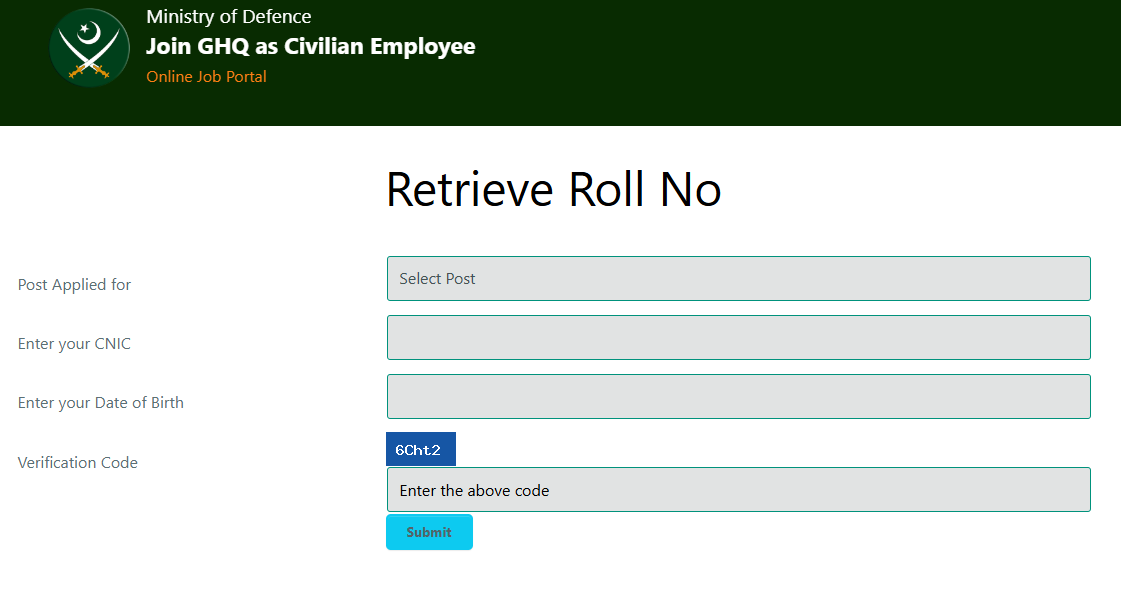
Step 1: Head to the Official Recovery Page
Open your web browser and go to the official portal link: amdte-rect.gov.pk/retriverollno.php. Make sure you are on the legitimate website to avoid any security or data issues.
Step 2: Select the Post You Applied For
Click on the “Post Applied for” drop-down menu. Scroll through the list and select the exact position you targeted during registration. The system tracks applications based on specific job listings, including:
- Higher Scales: Assistant (BPS-15), Stenotypist (BPS-14), UDC (BPS-13), LDC (BPS-11), etc.
- Lower Scales: Security Guard (BPS-5), Civilian Driver (BPS-4), Naib Qasid (BPS-1), Cook (BPS-1), and others.
Step 3: Enter Your CNIC Number
In the “Enter your CNIC” field, type your 13-digit Computerized National Identity Card number.
Important: Type your CNIC exactly as you entered it during the initial registration process (include dashes if the portal layout requires them, e.g.,
3740X-XXXXXXX-X).
Step 4: Provide Your Date of Birth
Click on the “Enter your Date of Birth” field. Select or type your exact birth date using the correct format (DD/MM/YYYY) as mentioned on your official identity documents.
Step 5: Solve the Security Verification Code (Captcha)
Look closely at the blue alphanumeric box labeled “Verification Code”. Type the exact combination of letters and numbers displayed (e.g., wf9wF) into the input field underneath it. This simple verification protects the portal from spam bots.
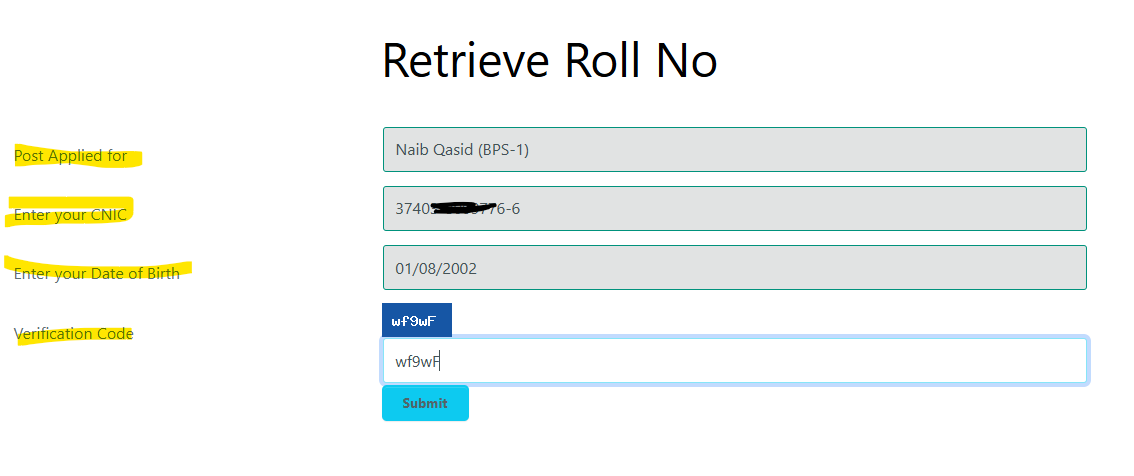
Step 6: Click Submit to View Your Roll Number
Review your entries one last time to avoid minor typos, then hit the light-blue “Submit” button.
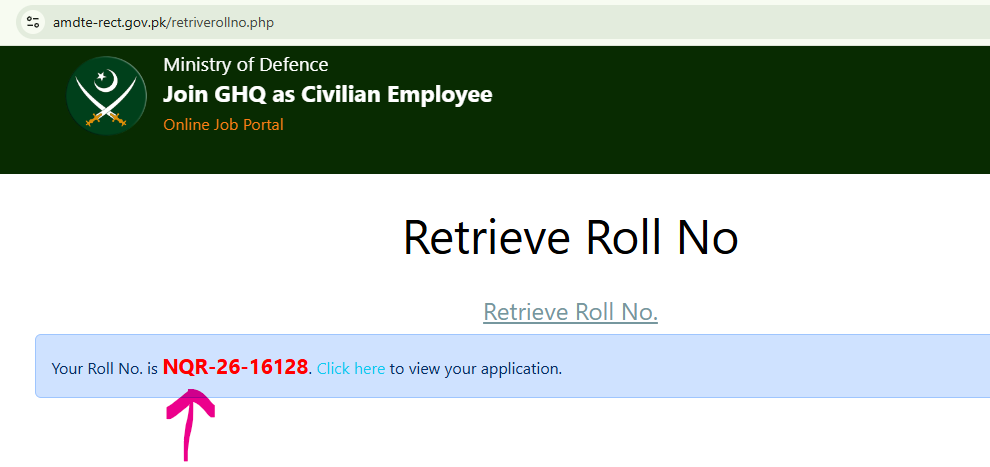
The web page will process your credentials and refresh. A blue notification box will instantly appear at the top displaying your confirmation message:
“Your Roll No. is NQR-26-16128. Click here to view your application.”
Summary of Eligible Job Positions on the Portal
To ensure you select the correct position during recovery, check the official vacancy breakdown supported by the recovery system:
| Pay Scale (BPS) | Supported Job Titles |
| BPS-13 to BPS-15 | Assistant, Stenotypist, UDC, Photographer, Copy Paster |
| BPS-8 to BPS-11 | LDC, Draughtsman, Translator, Offset Machineman |
| BPS-3 to BPS-5 | Security Guard, Civilian Driver, Upholsterer, Senior Binder, Junior Machineman |
| BPS-1 to BPS-2 | Attendant, Fireman, Junior Binder, Naib Qasid, Mess Waiter, Cook, Chowkidar, Inker, Sanitary Worker |
Pro-Tips for a Smooth Recovery Process
- Double-Check for Typos: If the portal says “No Record Found,” it is highly likely due to a slight mistake in your CNIC or Date of Birth entry. Re-verify your documents and try again.
- Match the Post Exactly: If you applied for an LDC (BPS-11) position, choosing UDC (BPS-13) in the drop-down menu will cause the system to return an error. Always verify your initial choice.
- Troubleshoot the Captcha: If the verification code looks too blurry or difficult to read, simply refresh your browser page to generate a fresh, easy-to-read combination.
Once your unique roll number is displayed, make sure to take a clear screenshot or write it down in a safe place. You can also click the direct link provided in the success message to review or download your full submitted application form on the spot. Good luck with your upcoming evaluation stages!
Was this guide helpful?
Feel free to ask a single follow-up question below if you encounter any technical portal errors or need specific tips on preparing for the written screening test!
This usually happens due to a typo in your CNIC, incorrect date of birth format, or selecting the wrong post from the drop-down menu.
No, the department will not send any physical letters; you must retrieve and download your slip directly from the online portal.
Take a screenshot or write it down, then click the provided link to view and print your complete application form.