

After submitting your online application for the Ministry of Defence (GHQ) civilian positions, the waiting period can bring a lot of anticipation. Did the department receive your application? Is your profile being reviewed? When will you find out about the next step?
Thankfully, you don’t have to guess. The official Join GHQ Civilian Employee Online Job Portal (amdte-rect.gov.pk) includes a built-in tracking module. By using the “Check Application Status“ feature, you can see real-time updates regarding your profile evaluation, view your assigned roll number, and verify your submitted credentials.
This comprehensive, easy-to-follow guide will walk you through the exact process of tracking your application status, decoding system messages, and downloading your final submission form.
Why Is Tracking Your Application Status Vital?
Checking your status regularly ensures you are always aligned with the recruitment timeline. The system updates dynamically as the scrutiny board processes thousands of digital profiles.
Tracking your portal page allows you to:
- Confirm Document Scrutiny: Verify that your electronic record has successfully entered the official review phase.
- Review Job Details: Double-check your chosen exam center, the exact scale designation, and your automated age calculation.
- Access Print Features: Secure a hard copy of your registration data, which serves as a vital cross-reference for upcoming exam phases.
Step-by-Step Guide to Checking Your Status Online
The tracking process is entirely digital and requires just a few basic credentials. Follow these steps to access your dashboard:
Step 1: Visit the Official Status Portal
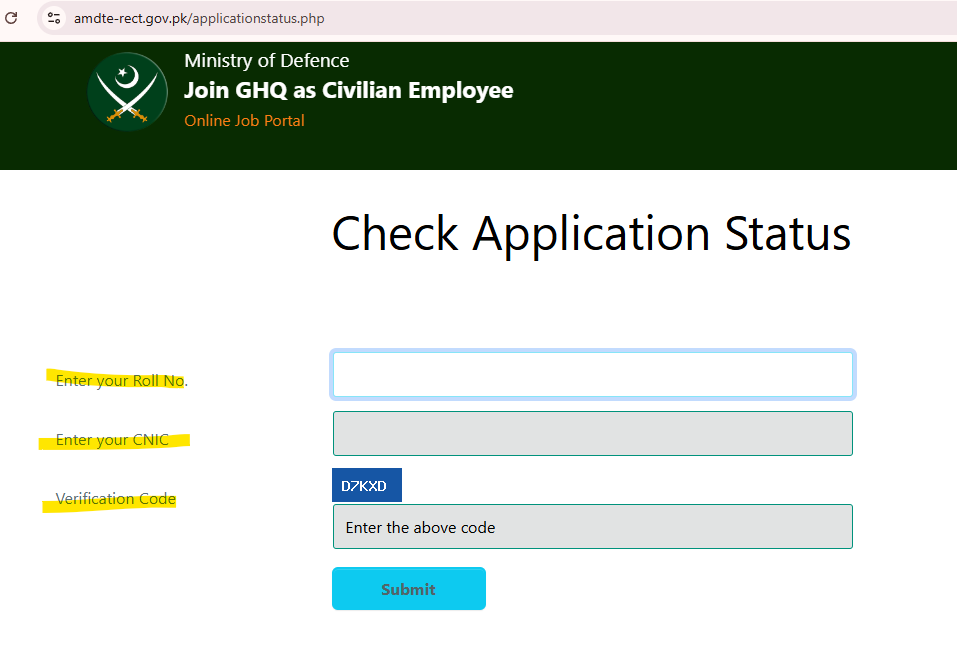
Open your web browser and navigate directly to the application status tracking utility: amdte-rect.gov.pk/applicationstatus.php.
Step 2: Provide Your Roll Number
In the first input box labeled “Enter your Roll No.”, carefully type the unique tracking number assigned to you during your registration phase.
Step 3: Input Your CNIC Number
In the second field labeled “Enter your CNIC”, type your 13-digit Computerized National Identity Card number. Make sure it matches the exact identity profile you used when submitting the base form.
Step 4: Enter the Verification Code (Captcha)
Look at the characters shown in the dark blue security banner labeled “Verification Code” (for example, D7KXD). Type these exact characters into the security field directly below it. This ensures a secure session.
Step 5: Submit the Tracking Request
Click the light-blue “Submit” button to load your digital dashboard.
Understanding Your Dashboard and Status Message
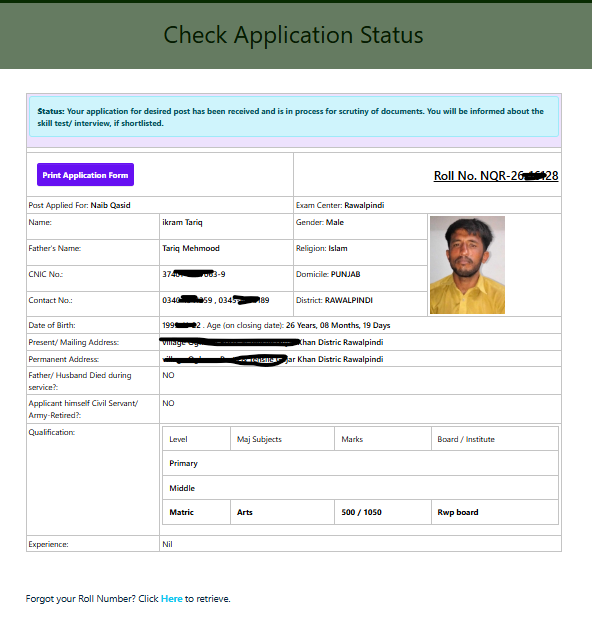
Once your page loads successfully, the tracking portal displays a complete overview of your file. At the very top, you will see a highlighted status message block.
Decoding the Primary Status Message:
“Status: Your application for desired post has been received and is in process for scrutiny of documents. You will be informed about the skill test/ interview, if shortlisted.”
What Does This Mean for You?
- Application Received: Your payment, photo files, and bio-data fields have successfully passed through the primary digital intake servers.
- In Process for Scrutiny: Administrative teams are currently matching your stated qualifications (such as your Matriculation marks, domicile boundaries, and age restrictions) against the strict eligibility requirements of the post.
- Awaiting Shortlisting: If your credentials align perfectly with the departmental quota guidelines, your status will change, and a downloadable roll number slip link will appear on this exact dashboard.
Deep Dive: Reviewing Your Saved Candidate Profile
Your status window displays a detailed breakdown of your application layout. It is highly recommended to scan through these sections to ensure everything is error-free:
1. Primary Identifiers
- Roll Number: Displayed prominently at the upper right of your form.
- Post Applied For: Confirms the exact role you are competing for (e.g., Naib Qasid, LDC, Assistant).
- Exam Center: Displays your designated testing city (e.g., Rawalpindi, Islamabad, Lahore).
2. Personal and Demographic Records
This area locks in your full name, father’s name, gender, religion, and precise regional allocation (District Rawalpindi / Domicile Punjab). It also lists your automated age calculation down to the exact days based on the advertisement’s closing date (e.g., 26 Years, 08 Months, 19 Days).
3. Academic & Professional Metrics
The bottom grid displays your entire educational pyramid (Primary, Middle, Matric, or higher) along with your declared major subjects, marks obtained versus total marks, and your passing board.
Status: Your application for desired post has been received and is in process for scrutiny of documents. You will be informed about the skill test/ interview, if shortlisted.
How to Print Your Completed Application Form
Inside your tracking dashboard, you will find a prominent purple button labeled “Print Application Form”.
Clicking this button allows you to generate a clean, official PDF printout of your submission record. Even though you are strictly instructed NOT to mail this paperwork to the GHQ headquarters via courier, keeping a printed physical copy in your files is excellent practice. It gives you a clear record of your tracking data and a backup copy of your official registration details.
Technical Troubleshooting: Common Portal Errors
- “Forgot Your Roll Number?” If you cannot remember your tracking ID, look at the bottom of the status input screen. Click the blue link text that reads “Forgot your Roll Number? Click Here to retrieve” to jump straight into the recovery wizard using your CNIC and date of birth.
- Data Not Matching: If the portal doesn’t load your form, ensure you haven’t included accidental spaces or incorrect hyphens while typing your CNIC or tracking roll number.
- Blank Status Display: During high-traffic testing cycles, pages may load slowly. If details fail to appear, clear your browser cache or try re-logging outside peak working hours.
Keep this status window bookmarked on your device and check it weekly. As the scrutiny phase concludes, all updates regarding testing schedules, locations, and panel interview listings will appear here first. Good luck with your selection process!